

Stores
The Stores list is available only on the Open mSupply Central Server. This is where you can view all stores, and manage their properties.
Viewing Stores🔗
Choose Manage > Stores in the navigation panel.
You will be presented with a list of stores in your system.
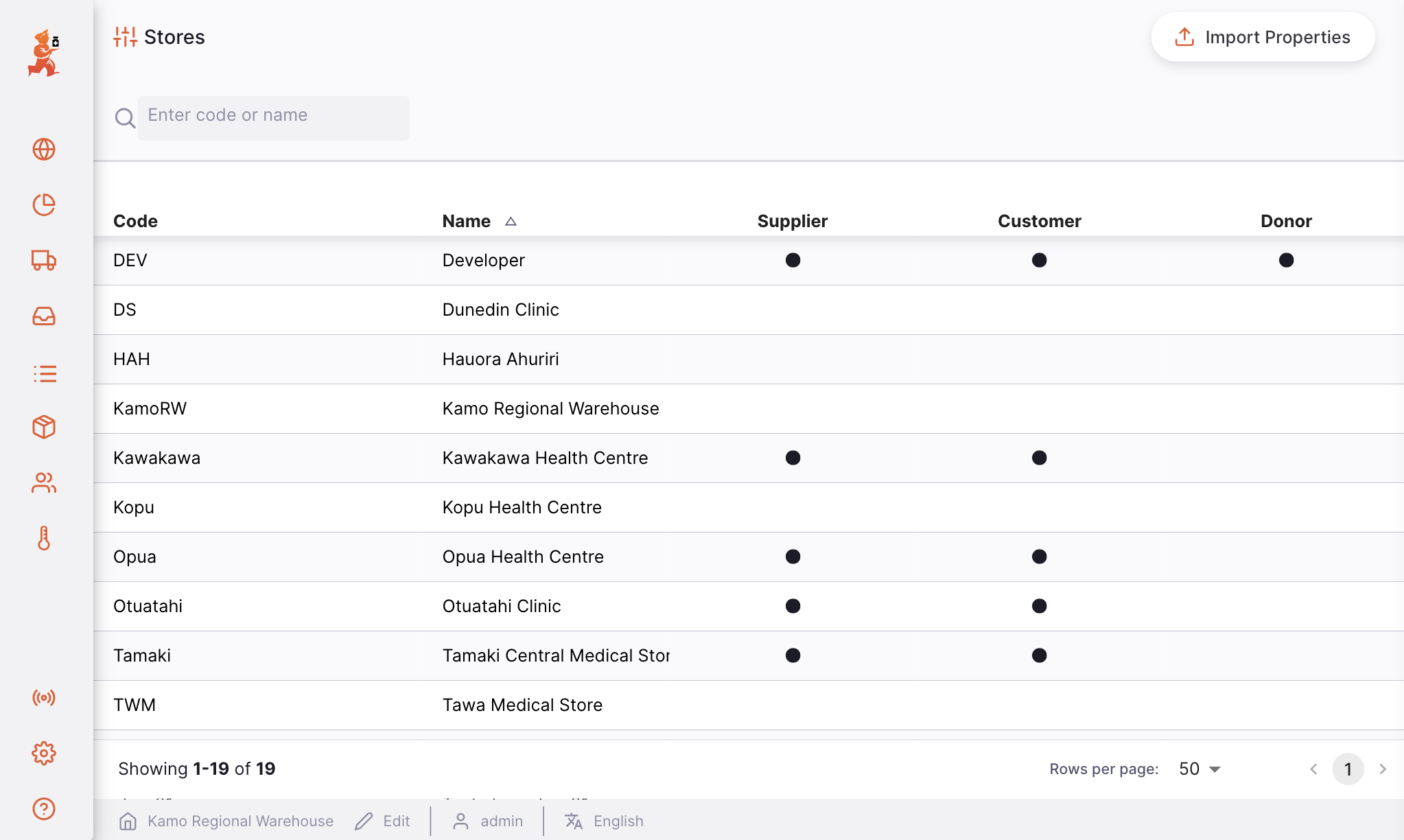
The list of Stores is divided into 5 columns:
| Column | Description |
|---|---|
| Code | The code for the store |
| Name | Store name |
| Supplier | Whether this store is a supplier |
| Customer | Whether this store is a customer |
| Donor | Whether this store is a donor |
 next to the code.
- The list can display a fixed number of stores per page. On the bottom left corner, you can see how many stores are currently displayed on your screen.
- If you have more stores than the current limit, you can navigate to the other pages by clicking on the page number or using the right of left arrows (bottom right corner).
- You can also select a different number of rows to show per page using the option at the bottom right of the page.
Searching stores🔗
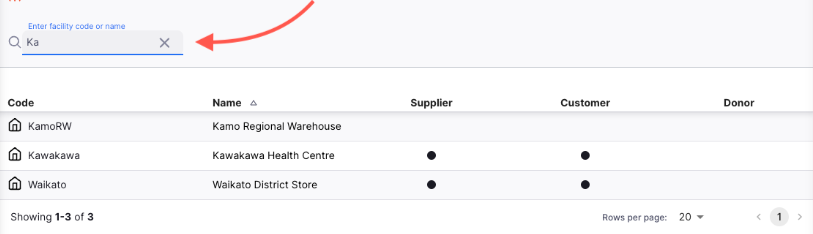
You can filter the list of stores by name or by code. This can be useful if you're looking for one particular store!
In the search bar in the top left of your screen, type some (or all) of a store name or store code. The list will now contain all matching stores:
Store Preferences🔗
Store preferences allow the configuration of Open mSupply for a specific store. A short description of each preference is given below, with further detail in their related areas of the documentation.
To configure preferences for a store, select that store from the list - a new window will open.
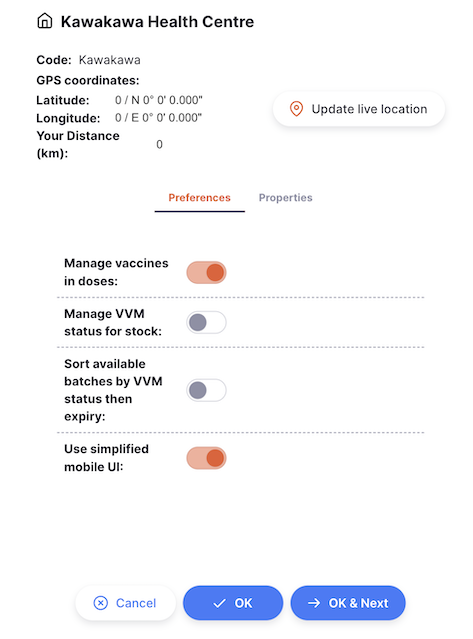
Toggle the preferences on or off as required, and close when you are finished.
Available Preferences🔗
| Preference Name | Description |
|---|---|
| Show indicative price on internal orders and requisitions | When this preference is enabled, an Indicative Price column is displayed on internal orders (in the requesting store) and on the corresponding requisitions (in the supplying store). |
| Enable blind stock take | Hides the display of the snapshot quantity in stocktakes if enabled |
| Order in packs | Defaults the Internal Order/Requisition representation to packs instead of units |
| Use procurement functionality | Enables procurement functionality including Purchase Orders and
External inbound shipments |
| Sort available batches by VVM status then expiry | Auto-allocation in Outbound Shipments and Prescriptions uses VVM status first, then FEFO |
| Use simplified mobile UI | Reduces number of fields and elements for tablets - see the simplified tablet UI page for details. Requires legacy store preference. |
| Disable manual returns | When this preference is enabled, the option to create supplier or customer returns manually is removed. Returns can only be created from an existing shipment. |
| Auto finalise fulfilled requisitions | Turn this on to have customer requisitions close automatically when all requested quantities have been shipped on outbound shipments. |
| Automatically verify inbound shipments | When enabled and a supplier sends an outbound shipment to the store, the automatically created inbound
shipment will be in the Verified status and stock will be available. |
| Manage VVM status for stock | Enables a VVM status field on stock |
| Manage vaccines in doses | View stock levels and transactions for vaccine items in doses, rather than units or packs |
| Can create Internal Order from a Requisition | Allows users to create an Internal Order from a Requisition |
| Select destination store for an Internal Order | Allows users to select the destination store when creating an Internal Order from a Requisition to change the destination of the supplier's Outbound Shipment |
| Inbound shipment (external) lines must be authorised | When this preference is enabled, lines on inbound shipments from external suppliers (i.e. suppliers who are not also Open mSupply stores) cannot be confirmed and added to your stock until they have been authorised by a user with the appropriate permission. |
| Number of months to check for consumption when calculating out of stock products | Sets how many past months are checked for item usage. If an item was used but is now out of stock, it will be flagged as out of stock on the homepage. |
| Number of months threshold to show low stock alerts for products | Flags products as low stock if their months of stock are below the set threshold. |
| Number of months threshold to show overstock alerts for products | Flags products as overstock if their months of stock are above the set threshold. |
| Batches expiring in between days | |
| First threshold for expiring items (days) | Days before expiry to start flagging as "expiring soon." Used in the Expiring Stock widget.
Note that the widget isn't displayed if both of these threshold settings are unconfigured. |
| Second threshold for expiring items (days) | Days before expiry to stop flagging as "expiring soon." Used in Expiring Stock widget. |
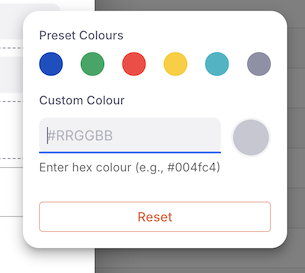
| Custom colour of page footer | The colour of the page footer can be changed to a store-specific value |
| Warn users when creating internal order if there is no recent stocktake | |
| Enable | Enable this feature |
| Max age | Days since the last stocktake with the required minimum items has been taken |
| Min items | A minimum number of items that the stocktake must contain to be considered - you may wish to ignore stocktakes which only have one or two items in them, for example. |
| Invoice status options | Configure which invoice statuses are available for Outbound shipments / supplier returns, and inbound shipments / customer return. |
Store Properties🔗
To edit the properties of a store in the list, click on it. This will open a new Edit Store window.
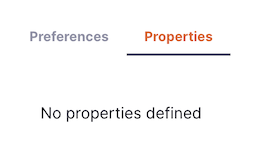
From this window, you can edit the store properties.
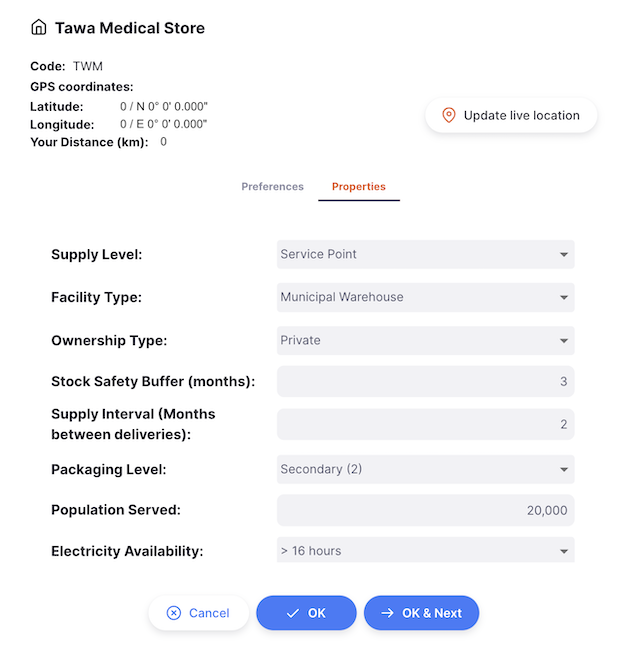
- Click
OKto save your changes and close the window - Click
OK & Nextto save your changes and start editing the next store - Click
Cancelat any time to revert your changes and close the window
Editing your store properties🔗
Any store can view and edit their own properties. If properties have been configured, an additional Edit button will be visible in the app footer, next to your store name:

Click the Edit button to open a new window, where you can edit the properties for your store.
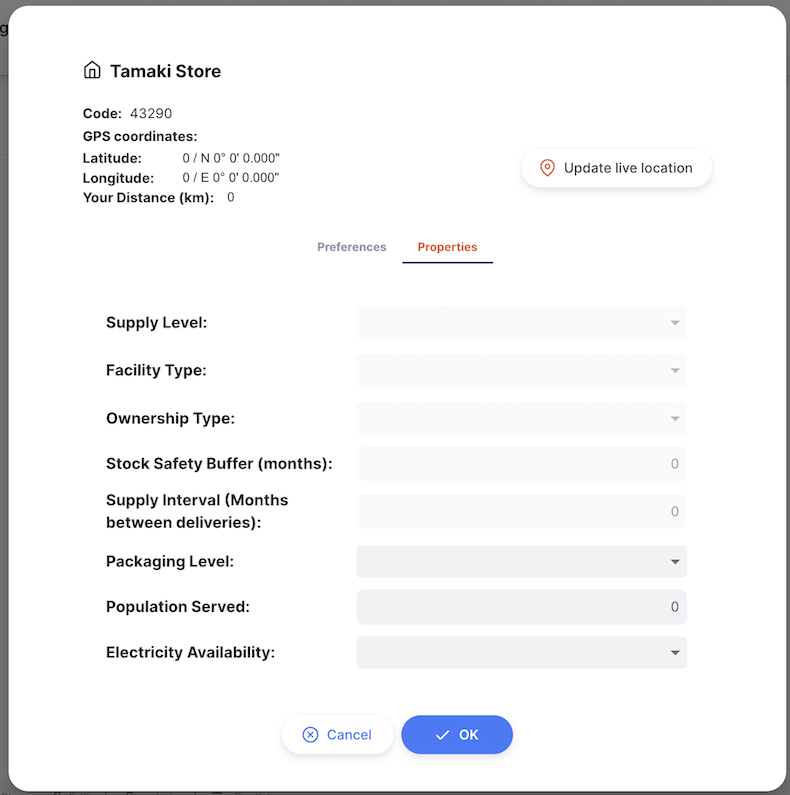
Once you are happy with your changes, click OK to save and close the window.
Click Cancel at any time to revert your changes and close the window.
Permissions & Restrictions🔗
Stores are only visible on the Open mSupply Central Server.
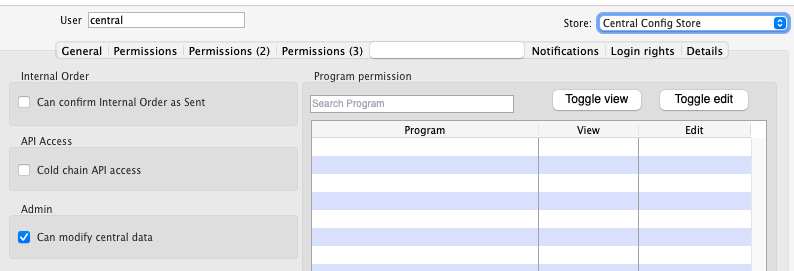
To Edit stores centrally you need the Can modify central data permission, enabled in the omSupply Permissions Tab on your Central Store.