

Global Preferences
The Global preferences list is available only on the Open mSupply Central Server. They are preferences which apply to all Open mSupply sites.
Viewing Global Preferences🔗
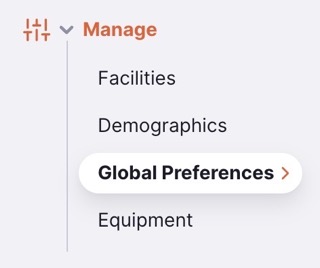
To configure Global Preferences, go to the Global Preferences page under the Manage menu:
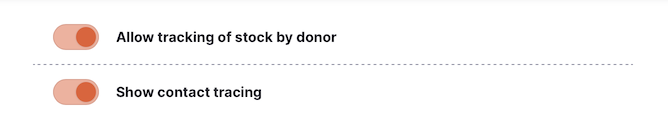
You will be presented with the set of currently available Global Preferences:
Available Preferences🔗
| Preference Name | Description |
|---|---|
| Allow tracking of stock by donor | Adds a donor column to stock management screens. This allows you to track which donor a stock item is from. |
| Gender options | The gender options available for clinicians and patients. This defines the options shown in gender filters and which can be assigned to clinicians and patients. |
| Show contact tracing | Enables the Contact Tracing feature for Patients |
| Custom Translations | Configure overrides for terms used throughout the application. |
| Sync records display threshold | The number of sync records that will need to be pending before showing an indicator over the Sync menu item |
| Authorise purchase orders. | Whether the purchase order process includes an authorisation step |
| Prevent transfers from this many months before initialisation | When migrating older mSupply Desktop & mobile sites to Open mSupply this preference can prevent the generation of hundreds of locked inbound shipments. Open mSupply will not create Picked status inbound shipments corresponding to outbound shipments from supplier's stores that were picked this many months before the date the site was initialised. Similarly, it will not make customer requisitions for internal orders finalised this many months before initialisation. |
| Authorise goods received | Whether the goods receiving process includes an authorisation step |
| Item margin overrides supplier margin | Give priority to the item margin on the receiving store over the supplier's margin if both are configured when receiving an inbound shipment. |
| Display population based forecasting | Whether to show the population based forecasting calculation instead of the standard AMC calculation in internal orders and requisitions. This will also show the target stock (population) field in internal orders and requisitions. |
Average Monthly Consumption (AMC)🔗
The Average Monthly Consumption preferences allow you to customise the item consumption calculation for your stores.
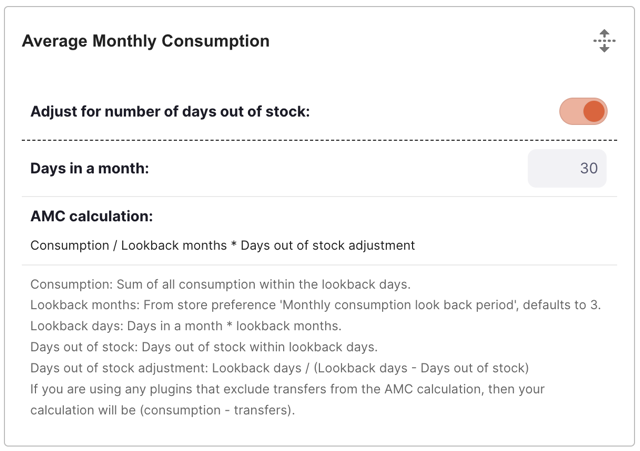
The base calculation is: (Consumption / Lookback months) * Lookback days / (Lookback days - Days out of stock)
You can adjust how the calculation works using the following preferences:
| Preference Name | Description |
|---|---|
| Adjust for number of days out of stock: | Exclude days within the lookback period where the item was out of stock for the full day. The lookback days is adjusted to exclude the number days out for stock if this preference is on. Note: days are counted as out of stock where the item has been in stock before (ie not a new item), and had a balance of zero at the end of the day and the end of the previous day. |
| Days in a month: | The number of days per month used in the AMC calculation. If no value is provided, the default is used (average days per month = 30.4375). |
Lookback months are configurable per store in mSupply with the Monthly consumption look back period preference. The default setting is 3 months.
Lookback days are calculated as Days in a month * Lookback months.
Backdating🔗
The Backdating preference is where to enable and configure the backdating of shipments (inbound and outbound) and inventory adjustments.
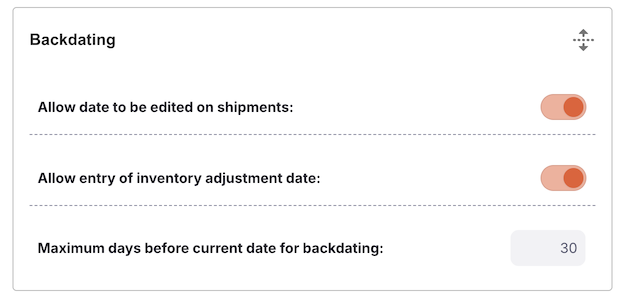
Shipments can be enabled separately to inventory adjustments. You can also define the maximum number of days in the past which can be selected.
Custom translations🔗
The Custom translations preference allows you to override specific terms used in the application. This is useful for localisation (or even localization!) or to adapt terminology to your specific context.
Translations are per-language🔗
From v2.20, custom translations are stored separately for each language. Overriding a term in one language (for example English) no longer affects the same term in any other language (such as French or Spanish), so you can tailor terminology language by language.
The custom translations editor always edits the language that is currently active in the app. When you open the editor, a banner shows which language you are editing, for example: "Editing custom translations for: English. Switch language using the selector at the bottom of the screen to edit another language."
To edit a different language's translations:
- Close the custom translations editor.
- Change the app language using the language selector at the bottom of the screen.
- Reopen the editor — it will now edit the newly selected language.
Finding a translation🔗
Use the search box to find the translation you want to override. You can search by:
- any text you see within the application (the default text),
- the translation key, if you know it, or
- the custom text you have already entered for an existing override.
Searching by your own custom content (new in v2.20) makes it much easier to find and maintain the overrides you have already set up. The search is case-insensitive and matches any part of the text.
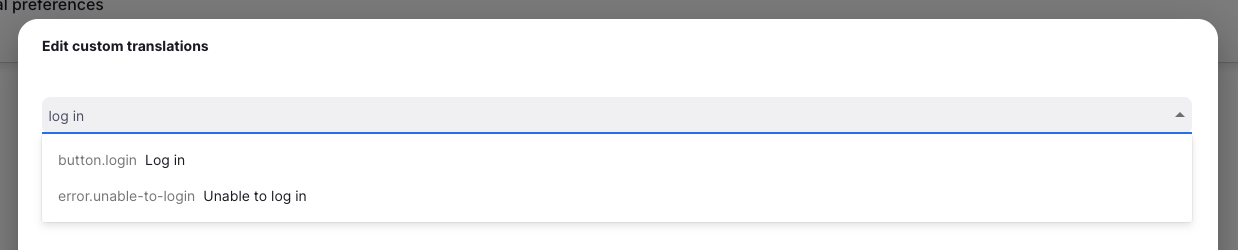
Select the translation you want to change, and then enter the new text in the input field:

Some translations include variables, which will be replaced with the appropriate values when they are used. You can move these variables around within the text, but ensure you keep them intact, so the messages continue to make sense. Variables are enclosed in double curly braces, like this: {{variable_name}}.

For translations that include number-based variables, we also support pluralisation. If you select one of these translations, you will see both _one and _other translations are added. Make sure you provide the correct text for both cases:

Download🔗
You've made a lot of great changes to custom translations and you'd like to share them with someone? Or simply back them up?
No problem - click the Download button to save all the custom translations in a JSON file format.
Import🔗
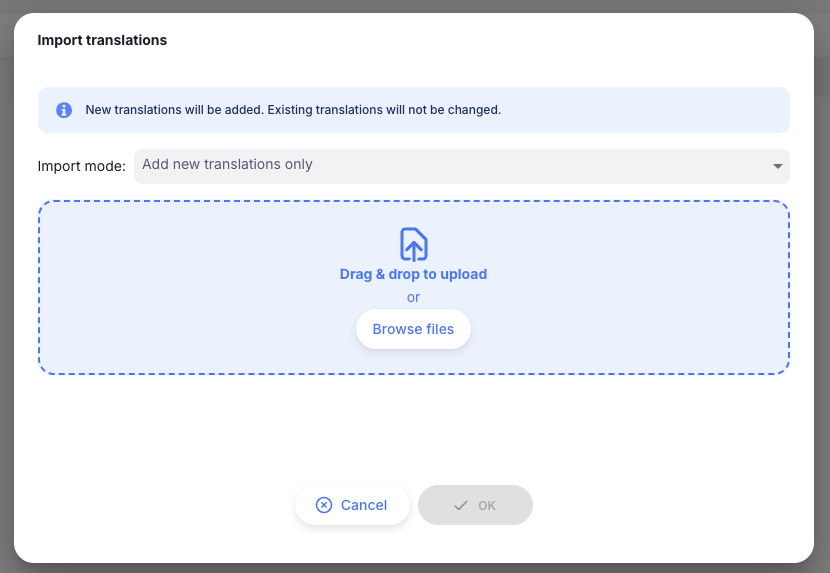
If you have downloaded some translations and now wish to apply them to your server, simply click the Import button. You'll be shown a new window where you can choose the mode and select a JSON formatted file to upload.
The mode options are:
- Add new translations only (default) - any translations in the import file which already exist as custom translations on your server will not be imported
- Add new and overwrite existing - new translations are added and any existing custom translations will be updated to the translation in your import file
- Delete existing and replace all - a clean slate! all existing custom translations are removed, and all the translations in the import file are added.
Default settings for tables🔗
There is a particular type of global configuration which is accessed in a special way. This is the default settings for tables.
Open mSupply tables are highly customisable. You can show or hide columns, reorder them, resize them, pin them, and change the row density. By default, these changes are saved only in your browser and apply only to you.
Administrators on the central server can go one step further: they can save their current table configuration as a global default that applies to all users across the system. This sets a consistent baseline so that every user sees the same table layout until they choose to personalise it.
Who can save global defaults🔗
To save a global default table configuration, you must meet both of the following conditions:
- You are logged in to the central server (not a remote site)
- Your account has the Edit Central Data permission
If you do not meet these conditions, you can still customise tables for yourself, but you will not see the option to save a global default.
What gets saved🔗
When you save a global default, the following settings are captured for that table:
| Setting | Description |
|---|---|
| Column visibility | Which columns are shown or hidden |
| Column order | The sequence in which columns appear |
| Column sizing | The width of each column |
| Column pinning | Which columns are pinned to the left or right edge |
| Row density | The row height — compact, comfortable, or spacious |
Each table in Open mSupply has its own independent global default. Saving a default on the Items table does not affect the Outbound shipments or any other table.
How to save a global default🔗
- Navigate to the table you want to configure
- Adjust the table to your preferred layout — show or hide columns, reorder them, resize them, pin columns, and set the row density
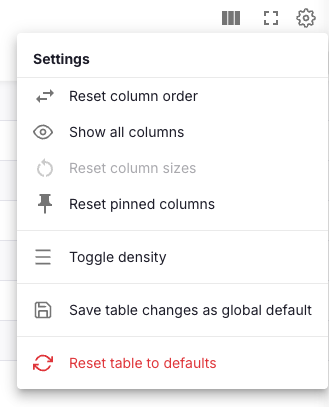
- Click the Settings icon (the gear/cog) in the right hand end of the table toolbar. A dropdown menu opens
- At the bottom of the menu, click Save table changes as global default
- A success notification confirms the configuration has been saved
The global default is now in effect for all users who have not already made their own personal customisations to that table.
How defaults are applied🔗
When any user opens a table, Open mSupply determines which configuration to display using the following priority order:
- Personal customisation — If the user has previously adjusted this table in their browser, those personal settings are used
- Global default — If no personal customisation exists, the global default set by an administrator is used
- Built-in default — If neither a personal customisation nor a global default exists, the application's built-in default is used
Personal customisations always take priority. This means that users who prefer a different layout can still adjust tables to suit their own needs without being affected by the global default.
Resetting a table🔗
The settings menu provides several ways to reset a table back to its defaults.
Reset the entire table🔗
Click the Settings icon and then click Reset table to defaults (shown in red at the bottom of the menu). A confirmation message appears:
The column order, size, pinning & visibility will all be reset to their default settings for this table.
What happens when you confirm depends on your role:
- Regular users — The table resets to the global default (if one has been set by an administrator). If no global default exists, it resets to the built-in default.
- Administrators on the central server — The table resets to the application's built-in default, bypassing any global default. This allows administrators to start fresh before saving a new global default.
Reset individual settings🔗
The settings menu also includes options to reset specific aspects of the table independently:
- Reset column order — restores the default column sequence
- Show all columns — makes all available columns visible
- Reset column sizes — restores the default column widths
- Reset pinned columns — unpins all columns
Each of these individual resets follows the same priority: it restores the global default if one exists, otherwise the built-in default.
Things to keep in mind🔗
- Global defaults are per table. You need to configure and save each table separately.
- Users are not forced into your layout. Any user can still personalise their own tables. The global default only affects users who have not made personal changes.
- Saving an unchanged table clears the global default. If you save a table configuration that matches the built-in default (or is empty), the global default for that table is removed rather than stored.