Inventory Adjustments
Inventory Adjustments allow you to manually increase or decrease the quantity of a stock item. They are used to correct stock levels when the physical count does not match what the system shows — for example, after discovering damaged stock, recording a donation, or correcting a data entry error.
Inventory Adjustments can be made directly from the Stock View without the need to create a full Stocktake.
Making an Inventory Adjustment🔗
- Go to
Inventory>Stockin the navigation panel. - Locate the stock item you want to adjust. You can search by item name or code.
- Click on the item row to open the stock line detail.
- Click the Adjust Stock button.
The Stock Adjustment dialog will open.
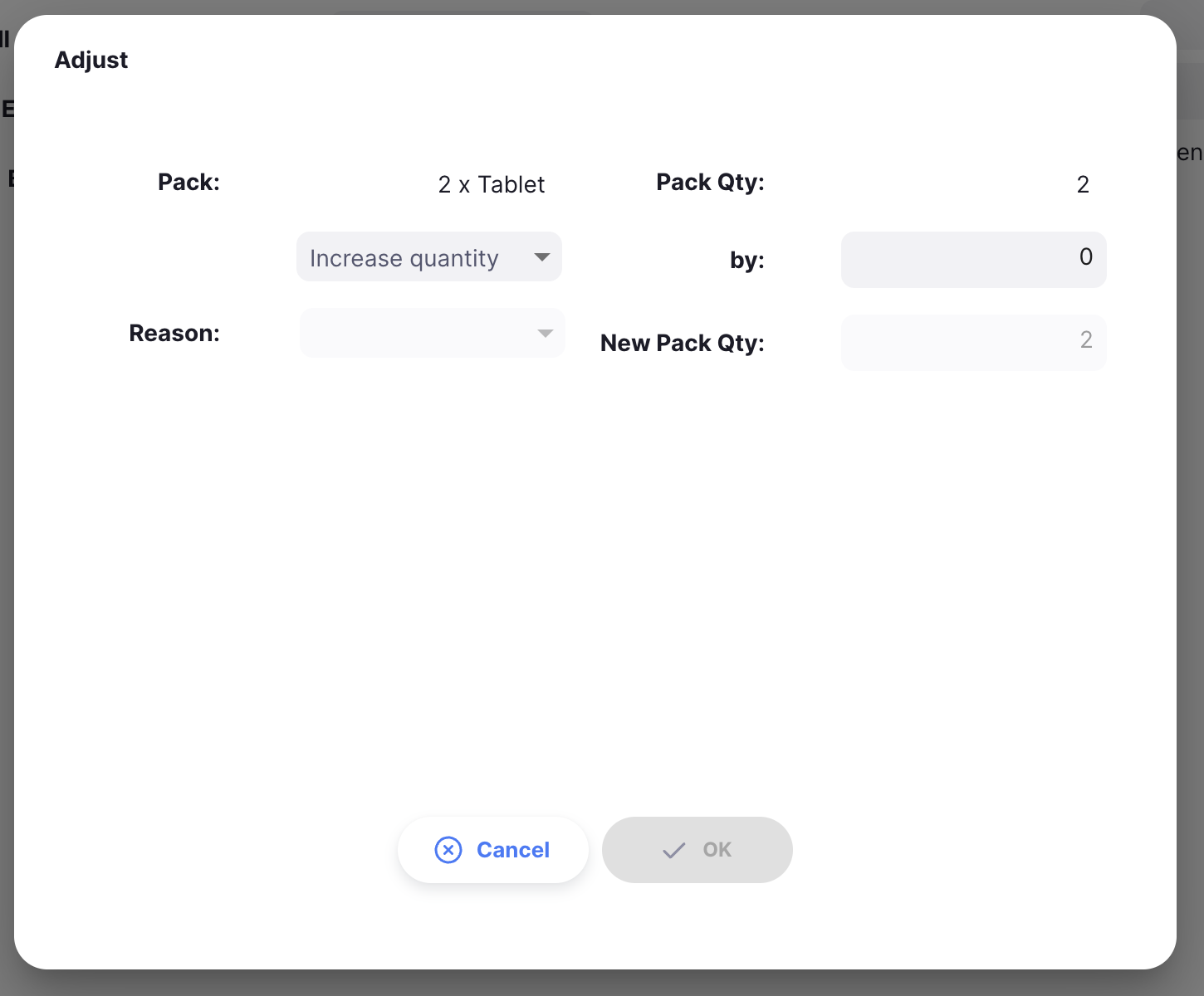
Stock Adjustment Dialog🔗
The dialog displays information about the selected stock item and provides fields for entering the adjustment.
Item information🔗
At the top of the dialog you can see:
| Field | Description |
|---|---|
| Item Name | The name of the item being adjusted |
| Code | The item code |
| Pack Size | The pack size for this stock line |
Stock statistics🔗
Two cards display the current stock levels and a preview of the adjusted values:
| Card | Description |
|---|---|
| Available Packs | Shows the current available quantity and the projected quantity after the adjustment is applied |
| Packs on Hand | Shows the current packs on hand and the projected quantity after adjustment |
When a backdated date is selected, these cards display the historical stock level at that date alongside the projected adjusted value.
Adjustment fields🔗
| Field | Description |
|---|---|
| Increase / Decrease | Select whether this adjustment will add stock (Increase) or remove stock (Decrease) |
| Adjust packs | Enter the number of packs to add or remove |
| Date | (Optional, only visible if backdating is enabled) The date the adjustment should be recorded as. Defaults to today. See Backdating an Adjustment. |
| Reason | Select a reason for the adjustment from the list. Reasons are configured by your system administrator. |
Saving the adjustment🔗
Once you have filled in all fields, click OK to save the adjustment. The stock level will be updated immediately.
If the adjustment would reduce stock below zero, an error message will appear and the OK button will be disabled:
"Stock reserved in new outbound shipments or prescriptions. This reduction is greater than the number of packs available."
In this case, reduce the adjustment quantity to an amount that does not exceed the available stock.
Click Cancel at any time to close the dialog without making any changes.
Backdating an Adjustment🔗
Backdating allows you to record an inventory adjustment as if it occurred on an earlier date. This is useful when correcting stock records for an event that happened in the past — for example, stock that was damaged last week but not yet recorded.
When backdating is enabled, a Date field appears in the Stock Adjustment dialog between the Adjust packs and Reason fields.
Selecting a backdated date🔗
- Click the Date field in the Stock Adjustment dialog.
- Select the date you want to record the adjustment on.
- The stock statistics cards will update to show the historical stock levels as at the selected date, so you can see the impact of the adjustment on your stock at that point in time.
Validation for reductions🔗
For Decrease adjustments, the system checks that the historical stock level at the selected date was sufficient to cover the reduction. If the adjustment would cause the stock balance to go below zero at any point in history, the OK button will remain disabled and an error will be displayed.
Effect on the stock ledger🔗
When a backdated adjustment is saved:
- The adjustment is recorded in the stock ledger at the selected date, not the current date.
- Historical stock reports will reflect this adjustment as having occurred on the backdated date.
Using today's date🔗
If you select today's date in the Date field, the system treats this as a non-backdated adjustment and records it at the current time, just as if no date had been selected.
Administrator Configuration🔗
Backdating for inventory adjustments is controlled by the Backdating global preference, available on the Open mSupply Central Server.
| Setting | Description |
|---|---|
| Inventory adjustments enabled | Enables or disables the Date field in the Stock Adjustment dialog. |
| Max days | The maximum number of days in the past that an adjustment can be backdated. Set to 0 for no limit. |
See Global Preferences for instructions on configuring these settings.