Backdating Inbound Shipments
Backdating allows you to correct the received date of an Inbound Shipment to an earlier date than when it was originally recorded. This is useful when stock was received physically on an earlier date but the shipment was entered into Open mSupply after the fact.
When a received date is backdated, the stock ledger is updated to reflect the correct historical date of receipt, ensuring accurate stock movement records.
Requirements🔗
Permissions🔗
Your user account requires the Edit inbound shipment received date permission to change the received date.
Shipment status🔗
The received date can only be changed on Inbound Shipments with a status of Received. It cannot be changed while the shipment is in New, Picked or Verified status.
Direction🔗
The received date can only be moved earlier — it cannot be moved forward to a later date. Once backdated, the date cannot be moved to a later date than the current backdated date.
Changing the Received Date🔗
The Received date field appears in the toolbar at the top of the Inbound Shipment detail view.

To change the received date:
- Open the Inbound Shipment you want to backdate
- Locate the Received date field in the toolbar
- Click on the date field to open the date picker
- Select the earlier date you want to assign as the received date
- A confirmation dialogue will appear:
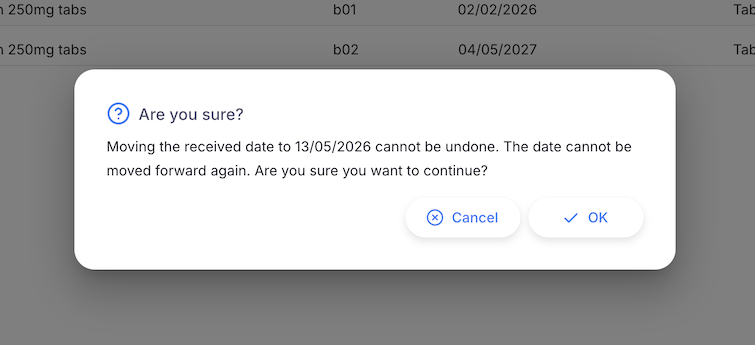
- Click OK to confirm, or Cancel to leave the date unchanged.
Stocktake warning🔗
If a stocktake has been recorded for this store after the new received date you have selected, an additional warning will appear:
Review this warning carefully. Backdating a receipt to before a stocktake date may create inconsistencies between the stocktake snapshot and the actual ledger history. Click OK to proceed anyway, or Cancel to choose a different date.
What Changes When You Backdate🔗
When you confirm a new received date:
- The received date on the shipment is updated to the new earlier date.
- All stock movement records for the shipment's lines are updated to reflect the new date. This means the stock will appear in your historical ledger from the new received date rather than the original date.
- The change is permanent — the date cannot be moved forward again once it has been backdated.
When Backdating is Disabled🔗
If backdating has not been enabled by your administrator, the Received date field will be read-only. The field may be read-only for other reasons though. To see why it is disabled, hovering over the field will display the reason:
| Message | Meaning |
|---|---|
| Date editing on shipments is not enabled. This can be changed in global preferences. | The backdating preference for shipments is turned off. Contact your system administrator. |
| The received date can only be changed once the shipment has been received. | The shipment has not yet reached Received status. |
| The received date is already beyond the maximum backdating limit of [n] days. | The current received date is already older than the maximum allowed backdating window. |