Custom Fields
Custom fields are the extra pieces of information your organisation tracks against a record that Open mSupply doesn't have a standard field for - a procurement code on an item, a district on a customer, a funding source on a shipment.
The Custom fields page in the Manage section is where you decide where each custom field appears: out of sight, on the record's Custom fields tab, or promoted onto the top of the record itself.
Custom fields page is only available on the Open mSupply Central Server, and only to users who have the Access server administration permission (see the Permissions page). It is not shown on remote sites, and the fields it configures apply to the whole system rather than to one store.Where custom fields come from🔗
Custom fields are defined in mSupply and are synchronised to the Open mSupply central Server. This page changes only where a field is shown - you cannot use it to manage fields (yet!).
To add, rename or change a custom field, or to change the list of choices an Option field offers, do it in mSupply. The change reaches Open mSupply Central on the next sync, and every other site on the sync after that.
The following mSupply fields become custom fields in Open mSupply:
| Record | mSupply field | Appears as | Type |
|---|---|---|---|
| Item | Item categories 1, 2 and 3 | Category, Category 2, Category 3 | Option |
| Item | Item user fields 1–7 | User field 1 … User field 7 | See below |
| Name | Name categories 1–6 | Category 1 … Category 6 | Option |
| Name | Name custom fields 1–3 | Custom 1, Custom 2, Custom 3 | Text |
| Shipment | Transaction categories | Category on each shipment, return and prescription | Option |
| Prescription | Prescriptions (2) categories - Patient type | Patient type | Option |
Notes on the table above:
- Item fields carry the types mSupply gives them: user fields 1, 2, 3 and 6 are
Text, user field 5 is aNumber, and user fields 4 and 7 areBoolean(a tick box). - Name means customers, suppliers and patients. They share the same nine definitions in mSupply, but each is configured separately for each of the three - see A field is configured once per record type.
- If you have renamed a field in mSupply, that name is what Open mSupply shows.
User field 1only appears as "User field 1" while it is still unnamed in mSupply. - Item category 1 and name category 1 are hierarchical in mSupply, and Open mSupply keeps that structure: when you choose a value, the choices are shown as a tree
- Transaction categories in mSupply that Open mSupply has no screen for (builds and tenders) are not brought across
No custom fields defined on every tab.Field types🔗
Every custom field has a type, which decides how it is displayed, how it is entered, and how you can filter a list by it.
| Type | On a record | Filtering a list by it |
|---|---|---|
| Text | A text box | Contains the text you type |
| Integer | A whole number | A Min / Max range |
| Number | A number, decimals allowed | A Min / Max range |
| Date | A date picker | A From / To date range |
| Boolean | A tick box | Yes / No |
| Option | A drop-down list of the choices set up in mSupply | Choose one or more options. Choosing a parent option also matches everything beneath it |
Viewing the custom fields configuration🔗
Choose Manage > Custom fields in the navigation panel.
The page has one tab per record type, in this order:
- Items
- Customers
- Suppliers
- Patients
- Inbound shipment
- Outbound shipment
- Dispensing
- Supplier return
- Customer return
- Prescription requests
Each tab lists every custom field configured for that record type, in the order the fields are displayed on the record.
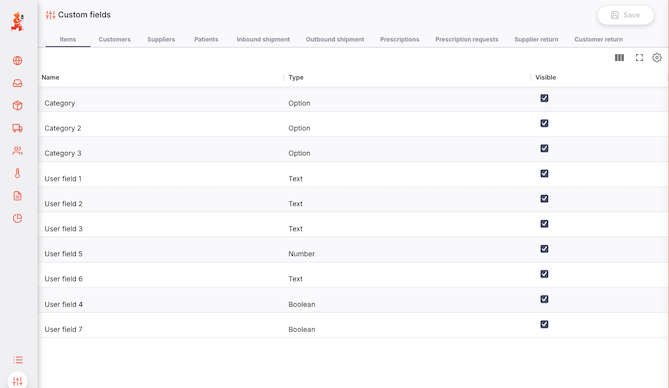 The following columns are shown:
| Column | Description |
|---|---|
| Name | The field's name, as set in mSupply. Read-only |
| Type | The field's type (see Field types). Read-only |
| Visible | Tick to show the field on this record type |
| Prominent | Tick to promote the field to the top of the record, next to its other key details. Only shown on the shipment, return, prescription and prescription request tabs - see Display options |
If a tab shows No custom fields defined, no custom fields have been set up in mSupply for that record type. Fields you have hidden still appear in this list, so an empty tab always means "nothing configured", rather than "everything hidden".
Display options🔗
The Visible and Prominent tick boxes combine to control if and where a field is displayed:
| Setting | Where the field appears |
|---|---|
Visible unticked | Nowhere - not on the record, not as a list column, not as a list filter |
Visible ticked | On the record's Custom fields tab, and as a column and filter on the list |
Visible + Prominent ticked | At the top of the record, alongside its other key details - and not repeated on the Custom fields tab |
Where the custom fields then appear🔗
Once a field is visible, it appears on that record type's list and its detail view. Whether it can be edited depends on the record: items, customers and suppliers are maintained in mSupply, so their custom fields are shown but not editable in Open mSupply.
| Record type | On the record | Editable |
|---|---|---|
| Items | Custom fields tab | No - items are maintained in mSupply |
| Customers | On the customer's details | No |
| Suppliers | Custom fields tab | No |
| Patients | Custom fields tab | Yes, with the patient editing permission |
| Inbound shipments | Custom fields tab, plus prominent fields in the header | Yes, while the shipment is still editable |
| Outbound shipments | Custom fields tab, plus prominent fields in the header | Yes, while the shipment is still editable |
| Dispensing | Custom fields tab, plus prominent fields in the header | Yes, while the dispensing record is still editable |
| Supplier returns | Custom fields tab, plus prominent fields in the header | Yes, while the return is still editable |
| Customer returns | Custom fields tab, plus prominent fields in the header | Yes, while the return is still editable |
| Prescriptions | Custom fields tab, plus prominent fields in the header. Four default fields (Weight, Patient unit, Category, Occupation) are always present and prominent unless you change them here | Yes, while the prescription request is New |
Good to know🔗
Hiding a field never deletes anything. Values already recorded against a hidden field stay in the database and stop being displayed. Tick Visible again and both the field and its values reappear exactly as they were.
A field is configured once per record type🔗
Customers, suppliers and patients share the same custom fields in mSupply, but Open mSupply configures them independently. Custom 1 can be visible for customers, prominent for patients and hidden for suppliers at the same time. Changing one tab never affects another - so if a field you expected is missing, check the tab for that specific record type.